This tutorial teaches you how to disable Smart App Control on Windows 11, a security feature that can block OnSign player installations and cause errors.
What is Smart App Control?
Smart App Control (SAC) is a Windows 11 security feature that blocks untrusted or unsigned applications from running. It uses an AI-powered cloud prediction model combined with code-signing verification to decide whether an app is safe, and operates in three states: On, Evaluation, or Off.
Why disable it on a dedicated signage device?
Signage devices often run custom or vendor-specific applications that lack the recognized certificates SAC trusts, causing it to block legitimate software and disrupt unattended operation. Since these devices already run a fixed, controlled set of apps in a locked-down environment, security is better handled through application whitelisting, restricted accounts, and kiosk policies, making SAC redundant and counterproductive.
This process may be necessary after the Windows update released on April 17, 2026, which introduced an issue affecting the Windows Security feature responsible for validating software digital signatures. As a result, installation errors may occur with the OnSign application, especially for white-label apps developed by clients.
Temporarily disabling Smart App Control can help prevent these installation issues.
- Press
Win + S, type Windows Security, then open the application.
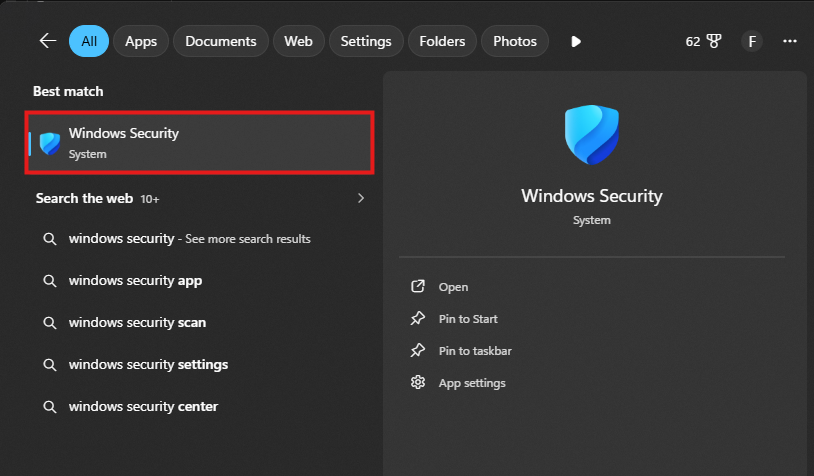
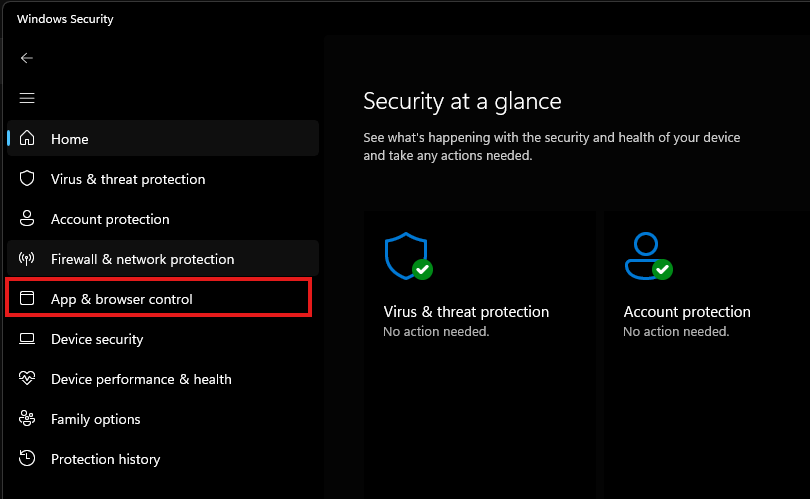
- Ihe left sidebar, click App & browser control.
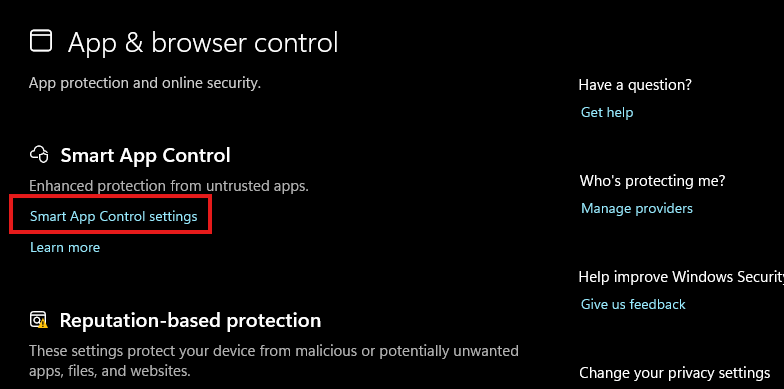
- Under the Smart App Control section at the top of the page, click Smart App Control settings.
- Select the Off option.
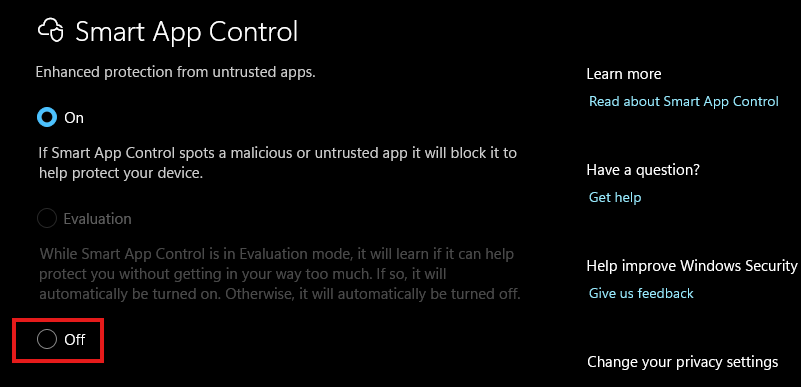
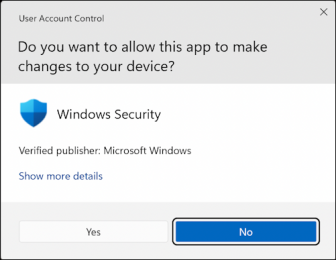
- A warning message will appear explaining the risks. Click Yes to confirm.
Smart App Control has now been successfully disabled. You may proceed with downloading the OnSign application.